> ## Documentation Index
> Fetch the complete documentation index at: https://docs.postonce.to/llms.txt
> Use this file to discover all available pages before exploring further.
# Connect an AI assistant to PostOnce
> Use Claude, ChatGPT, Grok, Cursor, Codex or any MCP client to publish posts and manage cross-posting workflows in PostOnce. Which assistants sign in directly and which need an API key.
You can ask an AI assistant to publish posts, schedule them, or set up cross-posting workflows in PostOnce. It connects through PostOnce's MCP server at `https://postonce.to/mcp`.
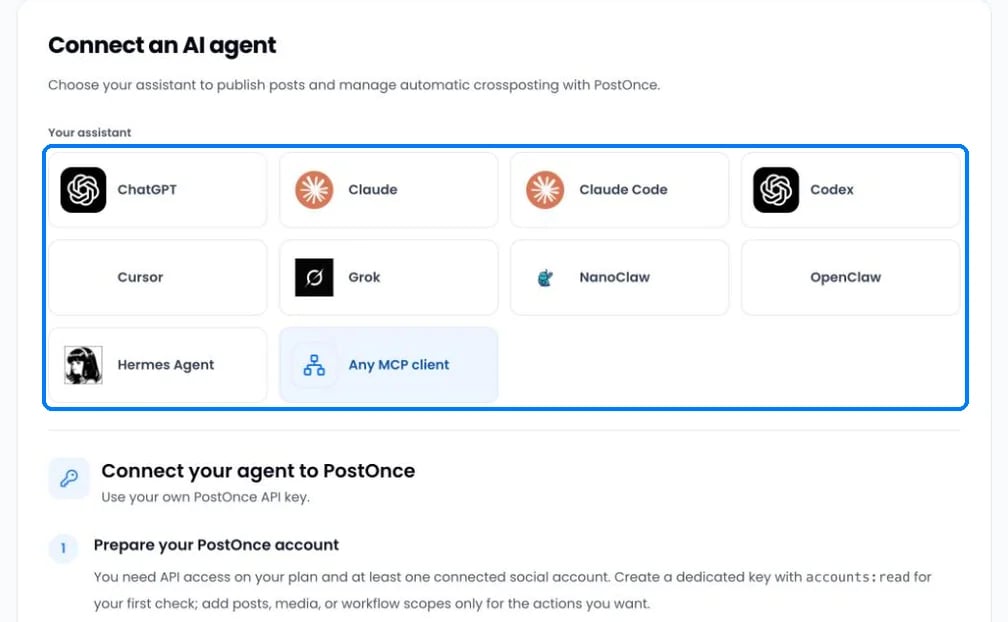
Open [Settings › AI agents](https://postonce.to/dashboard/preferences?tab=agents) and choose your assistant. PostOnce shows the exact steps for it.
 ## Two ways to connect
| Assistant | How it connects |
| - | - |
| Claude, ChatGPT, Grok | Sign in to PostOnce from the assistant and click **Allow access**. No API key needed. |
| Claude Code, Codex, Cursor, OpenClaw, Hermes Agent, NanoClaw, any other MCP client | Use a PostOnce **API key** in the assistant's settings. |
Claude, ChatGPT and Grok work on every plan, including the free trial. Assistants that use an API key need the Creator, Pro or Agency plan, because API keys are a paid feature. To publish, you also need at least one connected social account.
## Connect with an API key
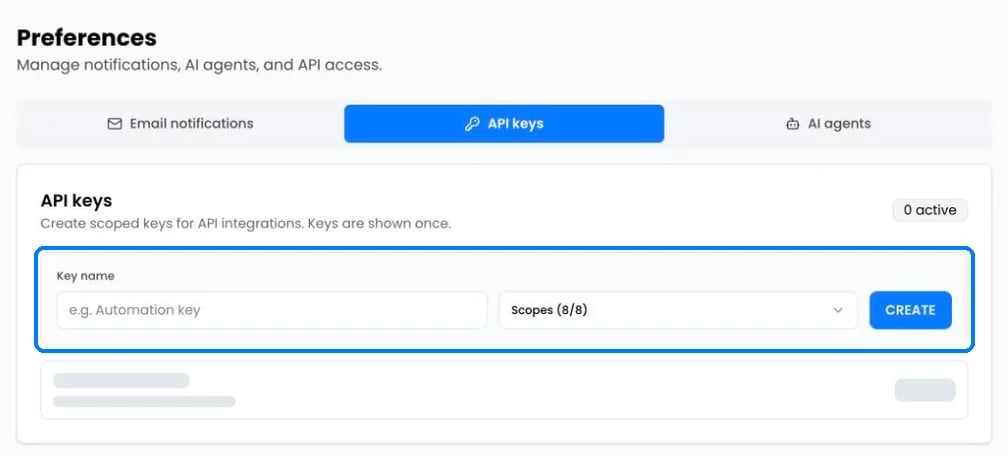
1. Open [Settings › API keys](https://postonce.to/dashboard/preferences?tab=api-keys), name the key and click **Create**. Copy it right away; it's shown only once.
2. Add PostOnce to your assistant with these details:
```text theme={null}
URL: https://postonce.to/mcp
Transport: Streamable HTTP
Authorization: Bearer YOUR_POSTONCE_API_KEY
```
3. Ask the assistant: "Show my connected social accounts." It should list your accounts.
## Two ways to connect
| Assistant | How it connects |
| - | - |
| Claude, ChatGPT, Grok | Sign in to PostOnce from the assistant and click **Allow access**. No API key needed. |
| Claude Code, Codex, Cursor, OpenClaw, Hermes Agent, NanoClaw, any other MCP client | Use a PostOnce **API key** in the assistant's settings. |
Claude, ChatGPT and Grok work on every plan, including the free trial. Assistants that use an API key need the Creator, Pro or Agency plan, because API keys are a paid feature. To publish, you also need at least one connected social account.
## Connect with an API key
1. Open [Settings › API keys](https://postonce.to/dashboard/preferences?tab=api-keys), name the key and click **Create**. Copy it right away; it's shown only once.
2. Add PostOnce to your assistant with these details:
```text theme={null}
URL: https://postonce.to/mcp
Transport: Streamable HTTP
Authorization: Bearer YOUR_POSTONCE_API_KEY
```
3. Ask the assistant: "Show my connected social accounts." It should list your accounts.
 Keep the key private. Don't paste it into a chat or a shared file. To stop a key working, click **Revoke** next to it and create a new one.
## Manage connected assistants
Assistants you signed in from appear under **Connected apps** on the AI agents tab, with the permissions they have. Click **Revoke access** to disconnect one.
## Tips
* Ask the assistant to create a draft first and check it in [Posts › Drafts](https://postonce.to/dashboard/posts/drafts) before publishing.
* Assistants can't read files attached to a chat. Give them a public link to the media instead.
Developers can find the full tool reference in the [MCP documentation](/mcp/docs) and the [API reference](/introduction).
## Still stuck?
Search this help center with ⌘ K, or email [support@postonce.to](mailto:support@postonce.to) from the address you use for PostOnce. Include the platform, the approximate time, and the exact message you saw. Never send passwords, access tokens, API keys, or card details.
Something missing from PostOnce? [Request a feature](https://postonce.featurebase.app/) or check the [roadmap](https://postonce.featurebase.app/roadmap).
This documentation is built and hosted on [Mintlify](https://mintlify.com), a developer documentation platform.
Keep the key private. Don't paste it into a chat or a shared file. To stop a key working, click **Revoke** next to it and create a new one.
## Manage connected assistants
Assistants you signed in from appear under **Connected apps** on the AI agents tab, with the permissions they have. Click **Revoke access** to disconnect one.
## Tips
* Ask the assistant to create a draft first and check it in [Posts › Drafts](https://postonce.to/dashboard/posts/drafts) before publishing.
* Assistants can't read files attached to a chat. Give them a public link to the media instead.
Developers can find the full tool reference in the [MCP documentation](/mcp/docs) and the [API reference](/introduction).
## Still stuck?
Search this help center with ⌘ K, or email [support@postonce.to](mailto:support@postonce.to) from the address you use for PostOnce. Include the platform, the approximate time, and the exact message you saw. Never send passwords, access tokens, API keys, or card details.
Something missing from PostOnce? [Request a feature](https://postonce.featurebase.app/) or check the [roadmap](https://postonce.featurebase.app/roadmap).
This documentation is built and hosted on [Mintlify](https://mintlify.com), a developer documentation platform.