> ## Documentation Index
> Fetch the complete documentation index at: https://docs.postonce.to/llms.txt
> Use this file to discover all available pages before exploring further.
# Repost your existing posts on a schedule
> Import your past Instagram, TikTok, YouTube or other posts into a PostOnce workflow and republish them on a daily schedule, to new platforms or the same account. Order, times, recycling and full sync.
A workflow can take the posts already on your source account and publish them gradually on a schedule, for example one per day at 9:00 AM. Use it to fill a new account with your back catalog, or to recycle evergreen posts.
Reposting existing posts is included in every paid plan and in the free trial. It works with every source platform except when a workflow only copies Stories.
## Set it up on a new workflow
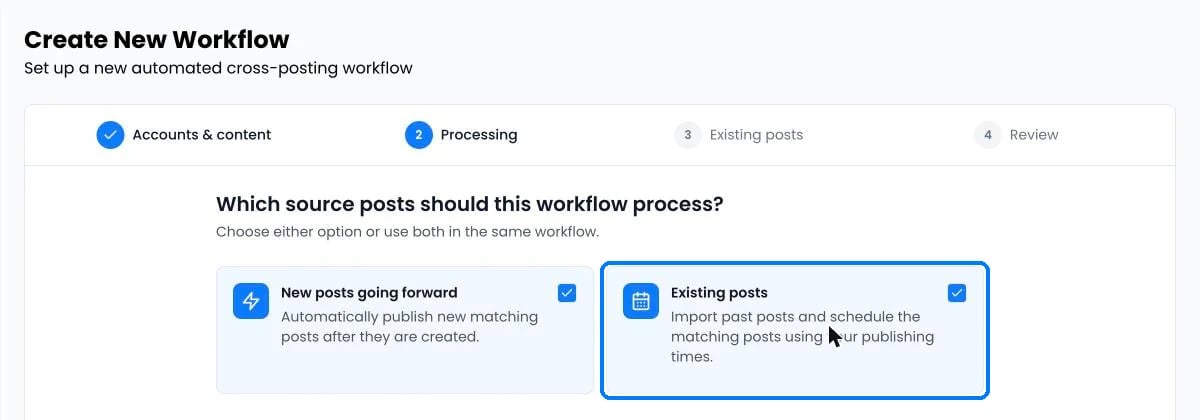
When you create a workflow, tick **Existing posts** at the **Processing** step. The next step asks what to publish and when.
 ## Set it up on an existing workflow
Open the workflow and click **Bulk schedule** on the **Existing posts** card (it shows **Manage** once a schedule exists).
## Set it up on an existing workflow
Open the workflow and click **Bulk schedule** on the **Existing posts** card (it shows **Manage** once a schedule exists).
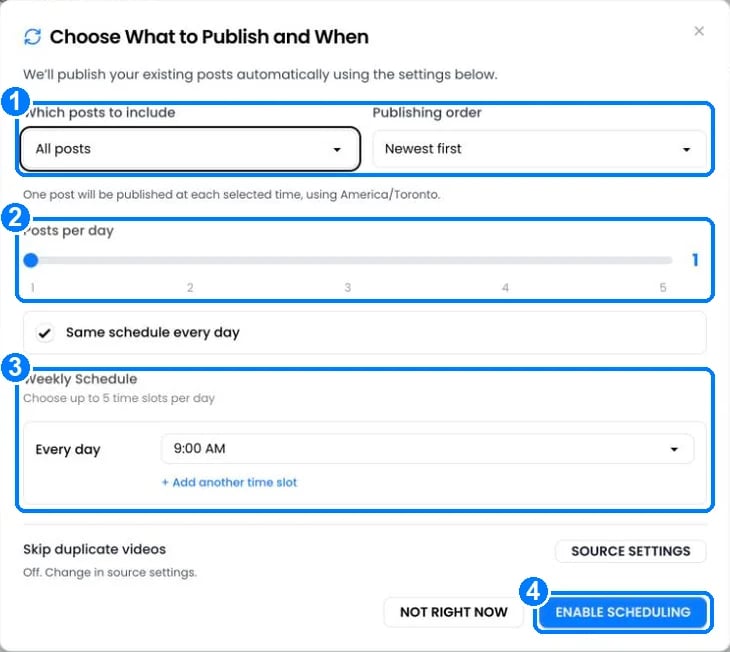 1. **Which posts to include**: all posts, or posts before, after or between dates. **Publishing order**: newest first or oldest first, by the original post date.
2. **Posts per day**: 1 to 5. One post is published at each time you choose.
3. **Weekly schedule**: up to 5 times per day, the same every day or different per weekday. Times use your timezone, shown above.
4. Click **Enable scheduling**.
PostOnce imports the source account's history and fills the time slots in order. Posts that no destination can accept are left out. The card then shows "{n} available · {n} scheduled".
To change the timezone or the start date, open **Settings › Publish**.
## Turn it off or on
The **Publish on schedule** switch on the Existing posts card pauses or resumes the schedule. Turning it off returns queued posts to "Available"; your settings are kept for when you turn it back on. New posts keep following **Publish automatically**.
## Keep your back catalog rotating
Under **Settings › Publish**, turn on **Recycle scheduled posts**. Each scheduled post goes back to the end of the queue after it publishes, so the schedule never runs out.
## Import posts the workflow hasn't seen
Under **Settings › Source**, click **Run full sync** to import all past posts from the source account. Posts already imported aren't added twice. You can run it again after 2 minutes.
## How it fits with new posts
* New posts and **Post now** go first. Scheduled reposts move later to make room.
* **Set time between posts** applies to reposts too.
* Daily caps still apply: 50 posts per day on Instagram and 14 on TikTok.
## Questions
As far as the platform shares your posts. PostOnce has no count limit. Threads only allows posts from 5 July 2023 onwards.
Yes. Choose the same account as source and destination for existing posts.
Platforms often store older videos at lower quality. Turn on **Skip low-quality videos** to leave those out. See [Video quality, sound and thumbnails](/help/video-quality-and-sound).
Yes. Click **Add back** or **Allow repeat** on the post in the workflow.
## Still stuck?
Search this help center with ⌘ K, or email [support@postonce.to](mailto:support@postonce.to) from the address you use for PostOnce. Include the platform, the approximate time, and the exact message you saw. Never send passwords, access tokens, API keys, or card details.
Something missing from PostOnce? [Request a feature](https://postonce.featurebase.app/) or check the [roadmap](https://postonce.featurebase.app/roadmap).
This documentation is built and hosted on [Mintlify](https://mintlify.com), a developer documentation platform.
1. **Which posts to include**: all posts, or posts before, after or between dates. **Publishing order**: newest first or oldest first, by the original post date.
2. **Posts per day**: 1 to 5. One post is published at each time you choose.
3. **Weekly schedule**: up to 5 times per day, the same every day or different per weekday. Times use your timezone, shown above.
4. Click **Enable scheduling**.
PostOnce imports the source account's history and fills the time slots in order. Posts that no destination can accept are left out. The card then shows "{n} available · {n} scheduled".
To change the timezone or the start date, open **Settings › Publish**.
## Turn it off or on
The **Publish on schedule** switch on the Existing posts card pauses or resumes the schedule. Turning it off returns queued posts to "Available"; your settings are kept for when you turn it back on. New posts keep following **Publish automatically**.
## Keep your back catalog rotating
Under **Settings › Publish**, turn on **Recycle scheduled posts**. Each scheduled post goes back to the end of the queue after it publishes, so the schedule never runs out.
## Import posts the workflow hasn't seen
Under **Settings › Source**, click **Run full sync** to import all past posts from the source account. Posts already imported aren't added twice. You can run it again after 2 minutes.
## How it fits with new posts
* New posts and **Post now** go first. Scheduled reposts move later to make room.
* **Set time between posts** applies to reposts too.
* Daily caps still apply: 50 posts per day on Instagram and 14 on TikTok.
## Questions
As far as the platform shares your posts. PostOnce has no count limit. Threads only allows posts from 5 July 2023 onwards.
Yes. Choose the same account as source and destination for existing posts.
Platforms often store older videos at lower quality. Turn on **Skip low-quality videos** to leave those out. See [Video quality, sound and thumbnails](/help/video-quality-and-sound).
Yes. Click **Add back** or **Allow repeat** on the post in the workflow.
## Still stuck?
Search this help center with ⌘ K, or email [support@postonce.to](mailto:support@postonce.to) from the address you use for PostOnce. Include the platform, the approximate time, and the exact message you saw. Never send passwords, access tokens, API keys, or card details.
Something missing from PostOnce? [Request a feature](https://postonce.featurebase.app/) or check the [roadmap](https://postonce.featurebase.app/roadmap).
This documentation is built and hosted on [Mintlify](https://mintlify.com), a developer documentation platform.