> ## Documentation Index
> Fetch the complete documentation index at: https://docs.postonce.to/llms.txt
> Use this file to discover all available pages before exploring further.
# Workflows: automatic cross-posting
> How PostOnce workflows copy posts from one account to many, what the workflow page and settings tabs do, and how to pause, edit or delete a workflow.
A workflow watches one **source** account and publishes a copy of each matching post to one or more **destinations**. One source with several destinations is a single workflow. To create one, see [Set up your first workflow](/help/getting-started).
## The workflow page
Open [Workflows](https://postonce.to/dashboard/workflows) and click **View** on a workflow.
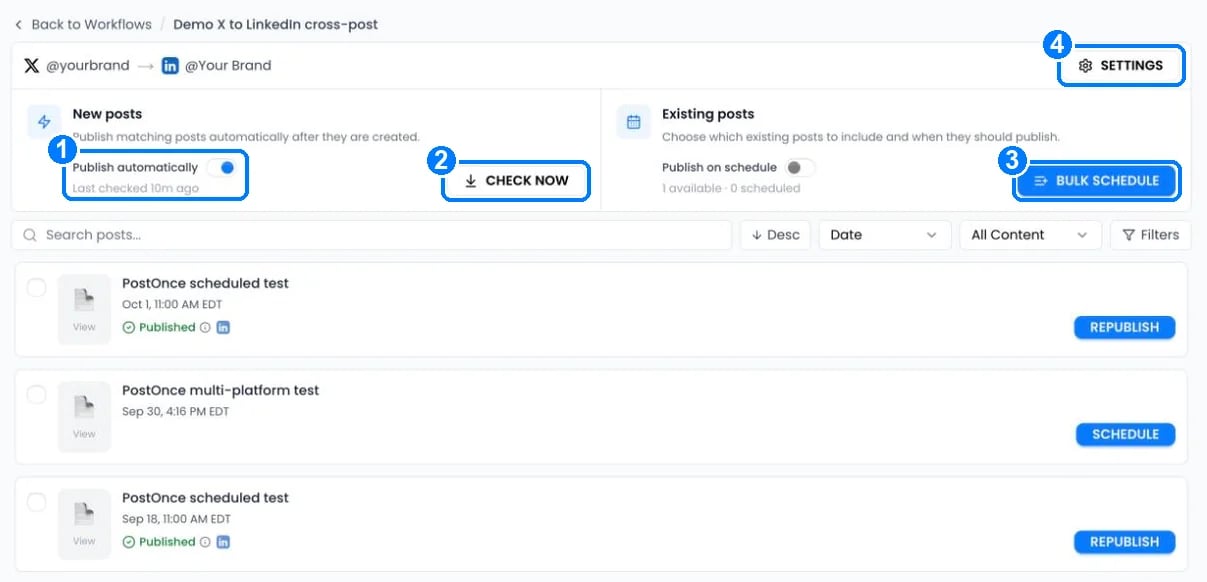 1. **Publish automatically** turns copying of new posts on or off. "Last checked" shows when PostOnce last looked at the source.
2. **Check now** looks for new posts right away.
3. **Bulk schedule** reposts older posts on a schedule. See [Repost existing posts](/help/repost-existing-posts).
4. **Settings** opens the workflow settings.
Below, each post shows its status and the platforms it reached. Use the filter to show only **Failed**, **Skipped** or **Scheduled** posts. Click **Retry** on a failed post after fixing the cause.
## Workflow settings
Click **Settings** on the workflow page. Changes apply to posts that haven't published yet when you click **Save settings**.
1. **Publish automatically** turns copying of new posts on or off. "Last checked" shows when PostOnce last looked at the source.
2. **Check now** looks for new posts right away.
3. **Bulk schedule** reposts older posts on a schedule. See [Repost existing posts](/help/repost-existing-posts).
4. **Settings** opens the workflow settings.
Below, each post shows its status and the platforms it reached. Use the filter to show only **Failed**, **Skipped** or **Scheduled** posts. Click **Retry** on a failed post after fixing the cause.
## Workflow settings
Click **Settings** on the workflow page. Changes apply to posts that haven't published yet when you click **Save settings**.
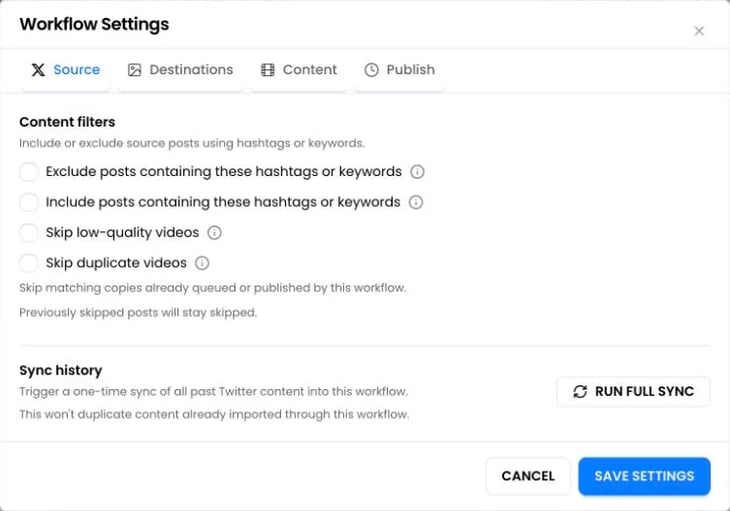 Choose which source posts the workflow copies: keyword filters, video quality, duplicates and a full history sync. See [Filters and duplicates](/help/filters-and-duplicates).
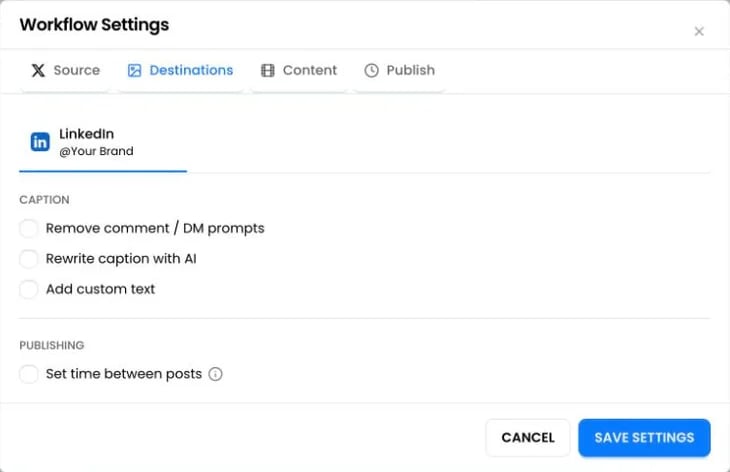 Each destination account has its own tab: caption options, time between posts and platform settings. See [Captions for each platform](/help/captions) and [How fast posts publish](/help/publishing-timing).
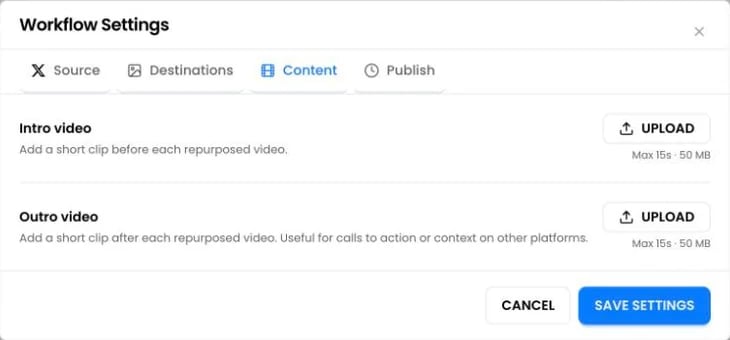 Add an **Intro video** before or an **Outro video** after every copied video, for example a call to action. Each clip can be MP4, MOV or WebM, up to 15 seconds and 50 MB.
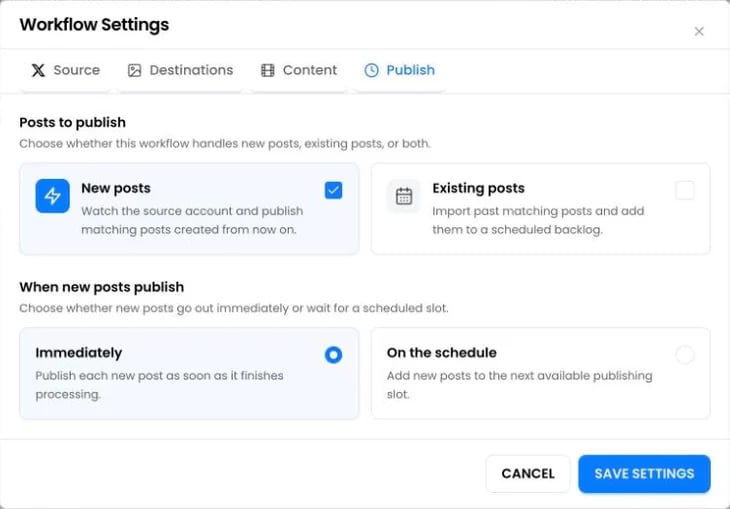 Choose new posts, existing posts or both, and whether new posts go out **Immediately** or **On the schedule**. See [How fast posts publish](/help/publishing-timing) and [Repost existing posts](/help/repost-existing-posts).
## Pause, edit or delete a workflow
* **Pause**: switch the workflow off in the list. Queued posts are paused, not deleted. When you switch it back on, new posts resume and existing posts are rescheduled.
* **Edit**: open the **⋮** menu and choose **Edit workflow** to change the source or destinations.
* **Delete**: open the **⋮** menu and choose **Delete workflow**. Posts that haven't published are discarded. Posts already published stay on the platforms, and their history stays in PostOnce.
A workflow can't be switched on while its source account needs reconnecting. [Reconnect it](/help/reconnect-an-account) first.
## Questions
Yes. Add every destination to the same workflow. It still counts as one workflow.
No. PostOnce doesn't copy posts it published itself back to their source, and its duplicate checks catch recent copies. To be safe, use a keyword filter on one side.
Yes, for existing posts. A workflow can take older posts from an account and republish them to the same account on a schedule.
Yes, if both tools copy the same posts. Turn off the other tool's automation for the accounts PostOnce handles.
Paid plans include unlimited workflows. The free trial includes 3, and paused workflows count toward that.
## Still stuck?
Search this help center with ⌘ K, or email [support@postonce.to](mailto:support@postonce.to) from the address you use for PostOnce. Include the platform, the approximate time, and the exact message you saw. Never send passwords, access tokens, API keys, or card details.
Something missing from PostOnce? [Request a feature](https://postonce.featurebase.app/) or check the [roadmap](https://postonce.featurebase.app/roadmap).
This documentation is built and hosted on [Mintlify](https://mintlify.com), a developer documentation platform.
Choose new posts, existing posts or both, and whether new posts go out **Immediately** or **On the schedule**. See [How fast posts publish](/help/publishing-timing) and [Repost existing posts](/help/repost-existing-posts).
## Pause, edit or delete a workflow
* **Pause**: switch the workflow off in the list. Queued posts are paused, not deleted. When you switch it back on, new posts resume and existing posts are rescheduled.
* **Edit**: open the **⋮** menu and choose **Edit workflow** to change the source or destinations.
* **Delete**: open the **⋮** menu and choose **Delete workflow**. Posts that haven't published are discarded. Posts already published stay on the platforms, and their history stays in PostOnce.
A workflow can't be switched on while its source account needs reconnecting. [Reconnect it](/help/reconnect-an-account) first.
## Questions
Yes. Add every destination to the same workflow. It still counts as one workflow.
No. PostOnce doesn't copy posts it published itself back to their source, and its duplicate checks catch recent copies. To be safe, use a keyword filter on one side.
Yes, for existing posts. A workflow can take older posts from an account and republish them to the same account on a schedule.
Yes, if both tools copy the same posts. Turn off the other tool's automation for the accounts PostOnce handles.
Paid plans include unlimited workflows. The free trial includes 3, and paused workflows count toward that.
## Still stuck?
Search this help center with ⌘ K, or email [support@postonce.to](mailto:support@postonce.to) from the address you use for PostOnce. Include the platform, the approximate time, and the exact message you saw. Never send passwords, access tokens, API keys, or card details.
Something missing from PostOnce? [Request a feature](https://postonce.featurebase.app/) or check the [roadmap](https://postonce.featurebase.app/roadmap).
This documentation is built and hosted on [Mintlify](https://mintlify.com), a developer documentation platform.