
https://postonce.to/mcp.
Open Settings › AI agents and choose your assistant. PostOnce shows the exact steps for it.
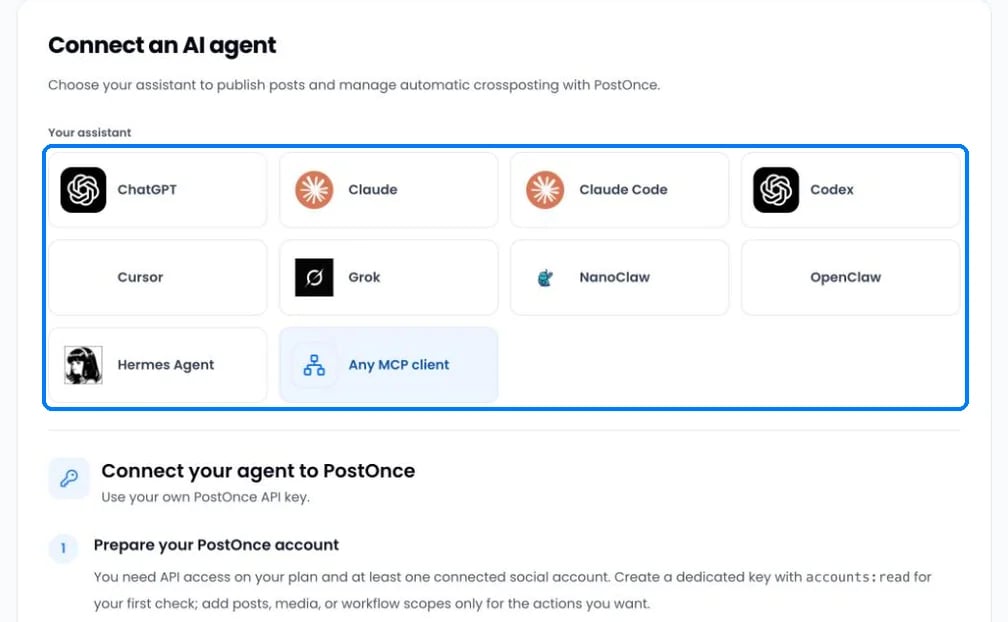
Two ways to connect
Claude, ChatGPT and Grok work on every plan, including the free trial. Assistants that use an API key need the Creator, Pro or Agency plan, because API keys are a paid feature. To publish, you also need at least one connected social account.
Connect with an API key
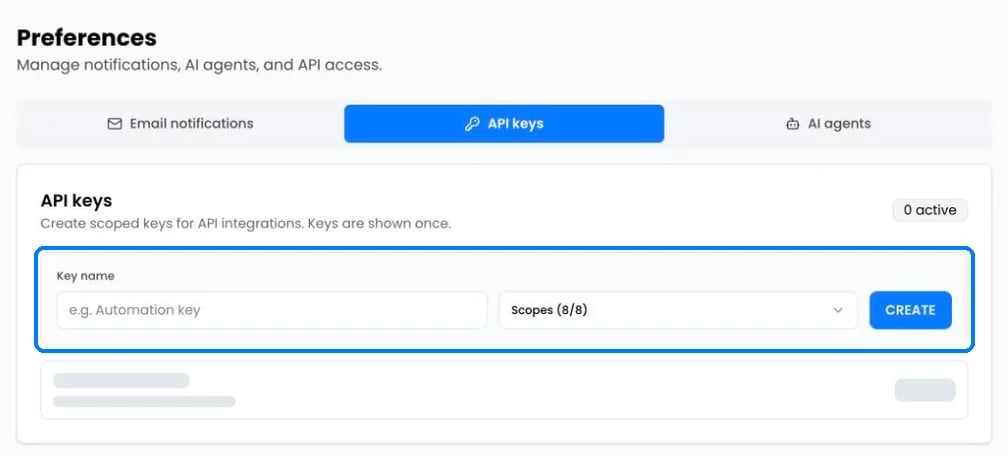
- Open Settings › API keys, name the key and click Create. Copy it right away; it’s shown only once.
- Add PostOnce to your assistant with these details:
- Ask the assistant: “Show my connected social accounts.” It should list your accounts.
Manage connected assistants
Assistants you signed in from appear under Connected apps on the AI agents tab, with the permissions they have. Click Revoke access to disconnect one.Tips
- Ask the assistant to create a draft first and check it in Posts › Drafts before publishing.
- Assistants can’t read files attached to a chat. Give them a public link to the media instead.