
Connect YouTube
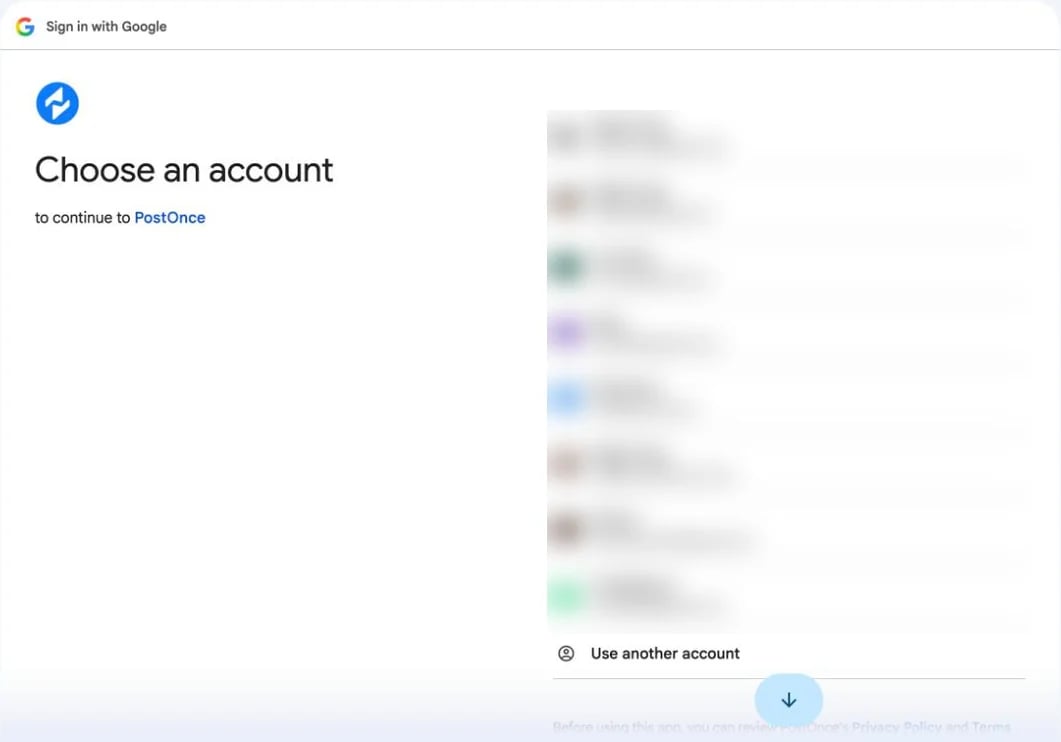
Google asks which account to use. Pick the one that owns your channel.
- On Accounts, click Connect YouTube.
- Choose the Google account that owns the channel and allow every permission Google asks for. If you untick a permission, uploads fail.
YouTube as a source
- Shorts are copied by default. Turn on Regular videos in the workflow (or under Settings › Source) to copy longer, horizontal videos too.
- PostOnce checks YouTube for new videos every 25 minutes.
- The copied caption is the video’s title and description.
- Private, removed, sign-in-only and age-restricted videos can’t be copied. If YouTube is still processing the video, PostOnce retries later.
Publishing to YouTube
YouTube only accepts video. Images and text-only posts are skipped.
Shorts or regular video? PostOnce uploads a video as a Short when it’s vertical, or when it came from TikTok, an Instagram Reel or another YouTube Short. YouTube makes the final decision based on the video’s length and shape.
Uploads are public by default and marked as not made for kids. In Create Post you can choose Public, Unlisted or Private. Up to 8 hashtags from the description are added as tags.
What YouTube doesn’t allow
- Only videos can be uploaded. Community posts and images aren’t supported by YouTube’s API.
- YouTube limits how many uploads an app can make each day. If the limit is reached, the upload fails with a quota message; retry the next day.