
Connect Instagram

- On Accounts, click Connect Instagram.
- Sign in to Instagram and approve access. You don’t need a Facebook Page.
Instagram as a source
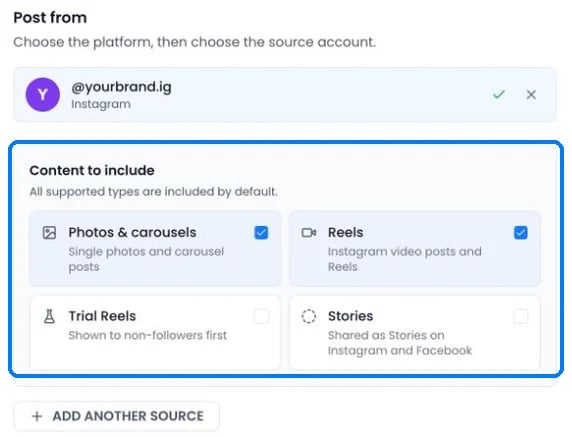
Choose which Instagram content a workflow copies
- Photos & carousels and Reels are included by default.
- Trial Reels (Reels shown to non-followers first) and Stories are off by default. Turn them on in the workflow or under Settings › Source.
- Stories are copied as Stories to Instagram and Facebook destinations, and as normal posts everywhere else.
- PostOnce checks Instagram for new posts every 5 minutes.
- If the original is deleted, archived or made private before PostOnce copies it, the post is skipped.
Publishing to Instagram
Limits
Videos wider than 1920 pixels or larger than 300 MB are resized before publishing. Line breaks in captions are kept.
Instagram settings in a workflow
Open the workflow, click Settings › Destinations and pick the Instagram account:- Publish as Trial Reels sends single-video posts as Trial Reels, shown to non-followers first. Images and carousels are not sent to that account. Share the Trial Reel to your followers yourself in Instagram.
- Post everything as Stories posts every single image or short video as a Story. Carousels, text-only posts and videos over 60 seconds are skipped. Trial Reels and Stories can’t both be on.
- Remove @mentions from captions removes the @ from usernames so other accounts aren’t tagged. Email addresses are left alone.
- The caption options and Set time between posts work as described in Captions for each platform and How fast posts publish.
What Instagram doesn’t allow
- Links in captions aren’t clickable on Instagram. Use “link in bio” instead.
- Music, stickers and polls can’t be added through Instagram’s API.
- Text-only posts can’t be published.