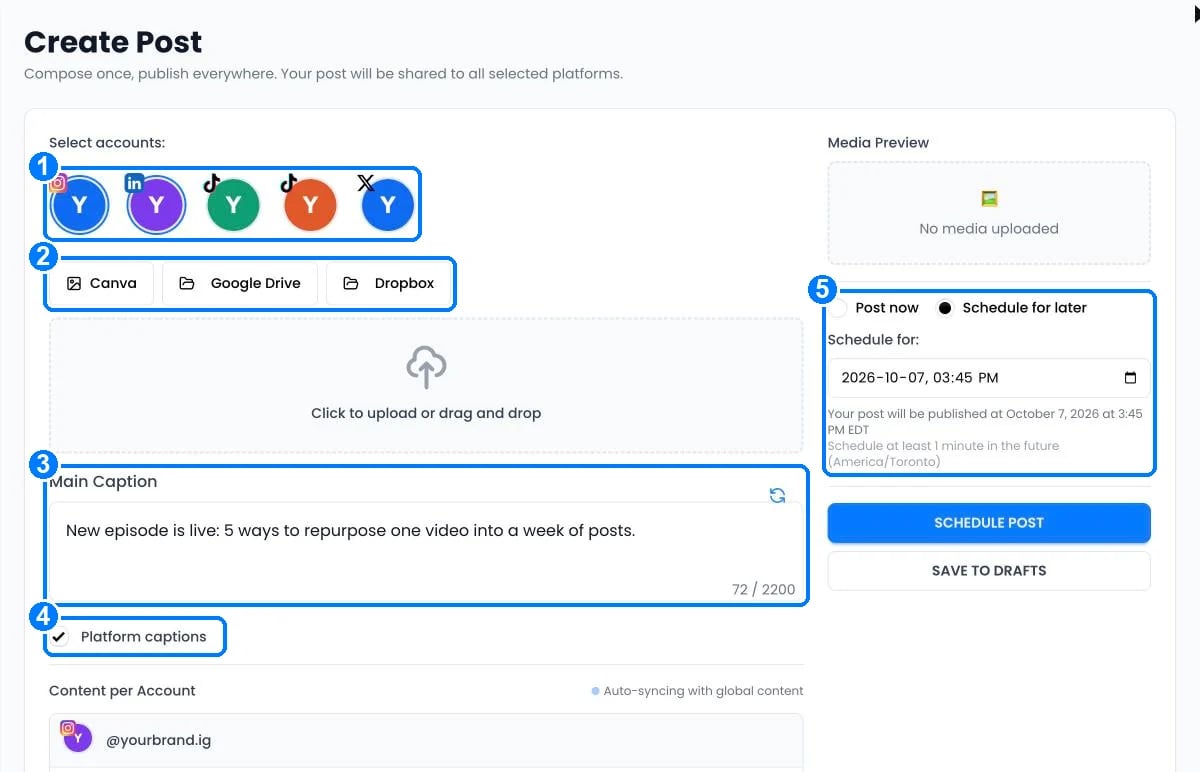
In Create Post, the buttons above the upload area import an image without downloading it first.
Each import adds one PNG or JPG image up to 20 MB. To add videos, upload the file directly. Imported images are copies; changing the original later doesn’t change your post.
Google Drive
- Click Google Drive. The first time, click Connect Google Drive and approve access in the window that opens.
- Choose an image. It’s added to your post.
The same Google Drive connection is used for backups. If you have several, pick one under Google Drive account.
Dropbox
- Click Dropbox, then Choose image. Dropbox opens a file chooser in a new window; sign in there if needed.
- Choose an image.
Dropbox doesn’t need a saved connection. If nothing opens, allow pop-ups for postonce.to.
Canva
When the Canva button is shown, click it, connect your Canva account, search for a design and choose the page to import. If the button isn’t there or the connection fails, export a PNG or JPG from Canva and upload it.
Import errors
Still stuck?
Search this help center with ⌘ K, or email support@postonce.to from the address you use for PostOnce. Include the platform, the approximate time, and the exact message you saw. Never send passwords, access tokens, API keys, or card details.
Something missing from PostOnce? Request a feature or check the roadmap. Last modified on October 7, 2026