
1
Select accounts
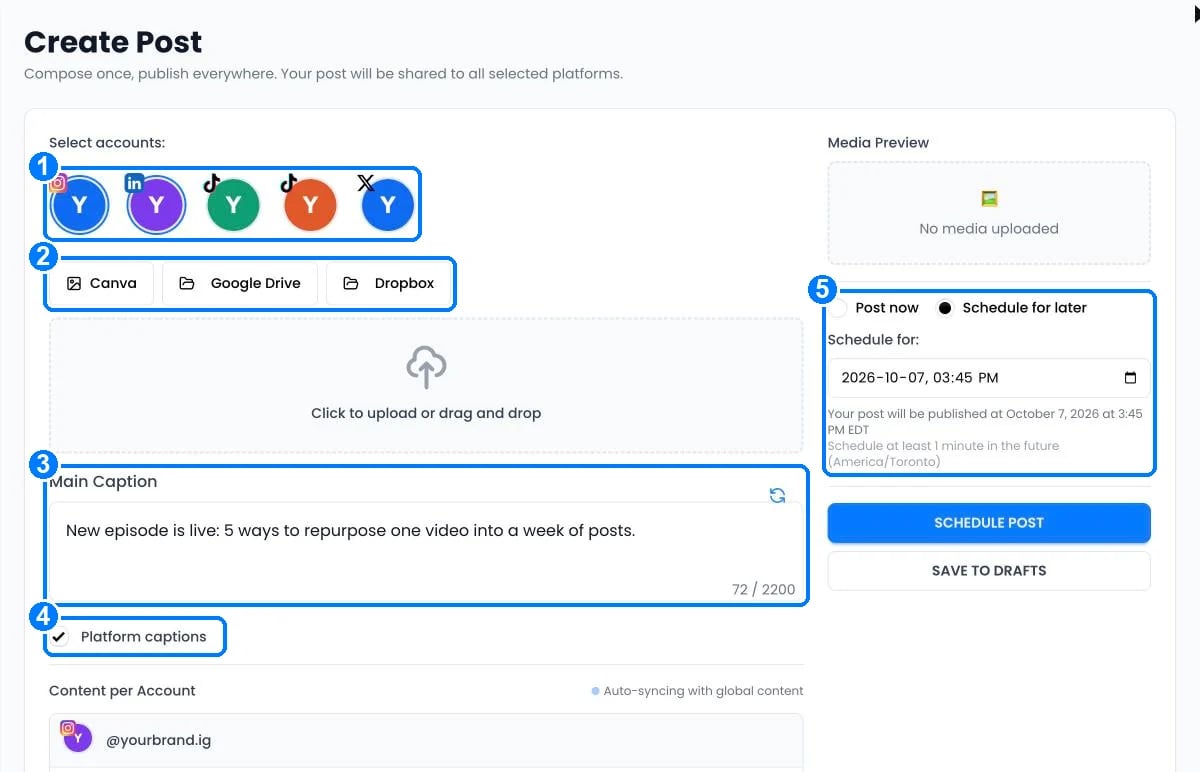
Click each account that should receive the post (1).
2
Add media
Drag in images or videos, or import an image from Google Drive or Dropbox (2). See Import images.
3
Write the caption
Write one caption for every account (3). The counter shows the limit of the strictest platform you selected. When TikTok is selected, this box is the post Title.
4
Adjust captions per platform (optional)
With two or more accounts selected, tick Platform captions (4) to edit the text for each account. Accounts you don’t edit keep following the main caption.
5
Publish or schedule
Choose Post now, or Schedule for later and pick a date and time in your timezone (5). Click Post now or Schedule post. To finish later, click Save to drafts.
Platform options
Extra fields appear when you select these platforms:- TikTok: delivery (post directly or send as draft), privacy, comments, Duet, Stitch and content disclosure. See TikTok.
- YouTube: title (up to 100 characters) and privacy: public, unlisted or private.
- Pinterest: board, description and destination link.
To protect your accounts, Post now allows up to 5 posts in a row and 10 per hour, then waits a few minutes. Scheduled posts are not affected.
After you publish
- See every post and its result on Posts › Published.
- Change or cancel scheduled posts on Posts › Scheduled. See Manage scheduled posts.
- Get an email when a post fails under Settings › Email notifications.